About the Dashboard
The Dashboard appears after you log in to TIDE. The page setup reflects the stages of the testing process, with tasks organized based on common timeframes when users will perform the actions.
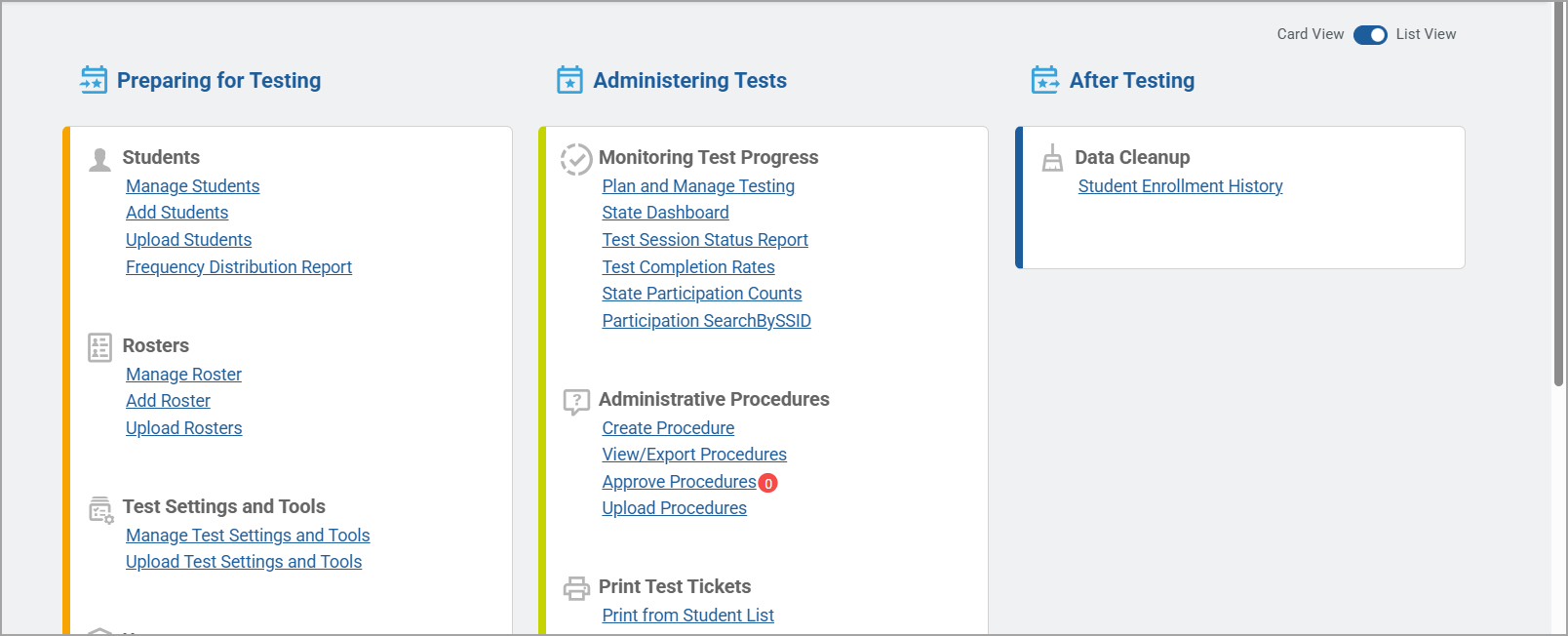
There are two views of the Dashboard: Card View (Figure 4) and List View (Figure 5). The default view is set for you and displays automatically. If you want to use the other view, you'll need to change it each time you log in to TIDE.
Note: The tasks displayed on the Dashboard depend on your user role and may vary from what is shown in the example images.
Figure 4: Example of a TIDE Dashboard with Common Tasks in Card View
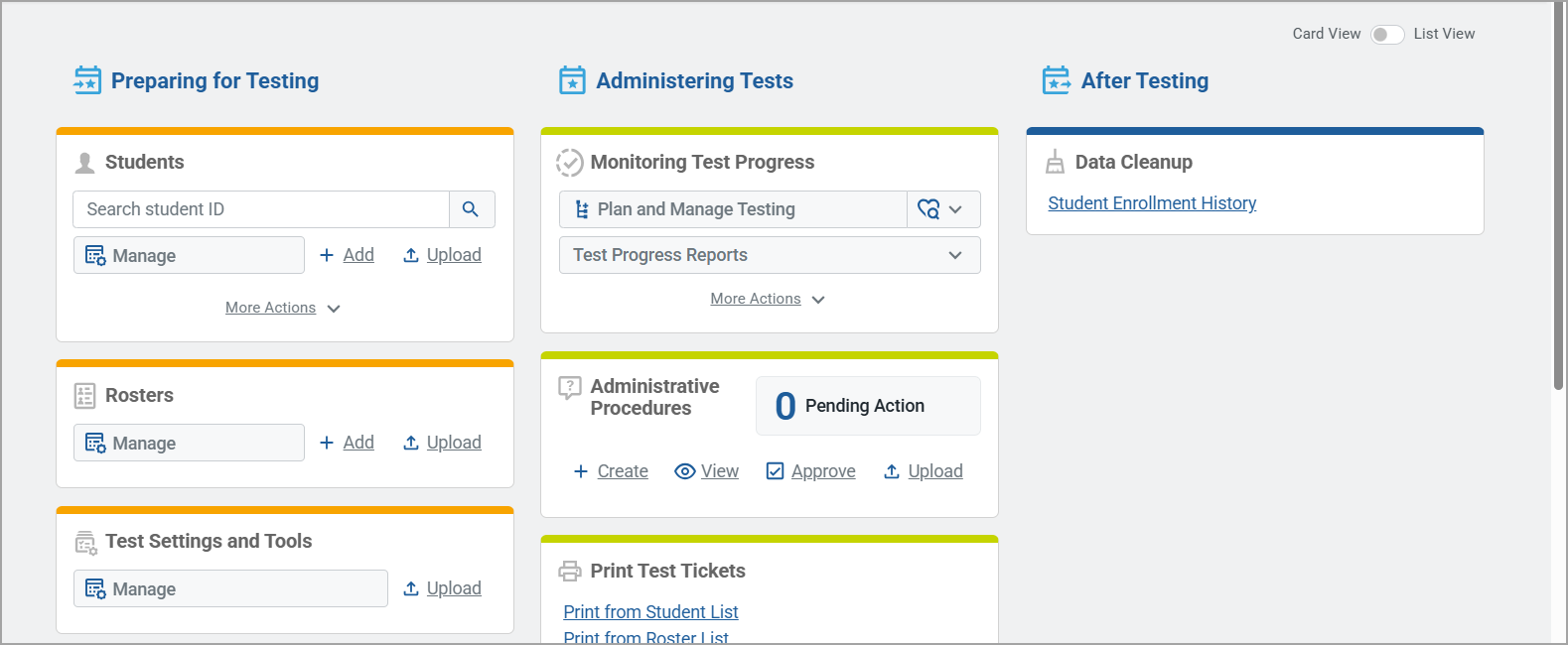
Figure 5: Example of a TIDE Dashboard with Common Tasks in List View
Card View
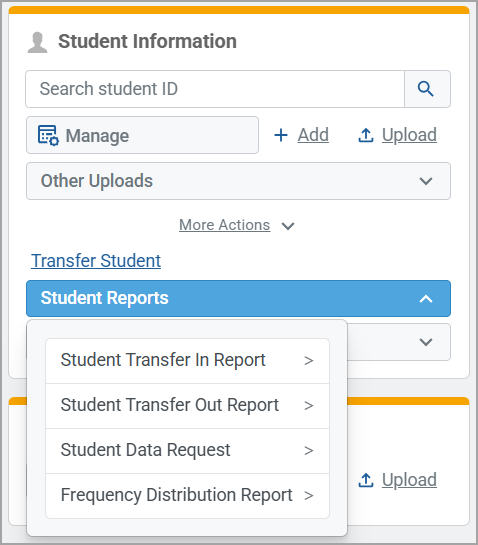
This view is designed to provide easy access to commonly used tasks. Frequently accessed tasks are displayed for easy access, while other tasks need to be accessed by expanding the More Actions section. Main tasks have buttons at the top of each card, while other tasks or reports may be accessed from a dropdown or through a link.
Figure 6: Card with More Actions Expanded to Show Options
List View
This view does not give visual preference to commonly used tasks and simply lists all tasks in a task group.
Difference in Labels Between Views
Card View uses shortened task names for main tasks, such as Manage, Add, and Upload, while the full name appears in List View. Rest assured that the task is the same regardless of the label you select to access it.