Appendix B: Text Response Questions Formatting Toolbar
In addition to the standard test tools described in the section Test Tools, students can use a formatting toolbar above the response field for text response items. The formatting toolbar allows students to apply styling to text and use standard word-processing features.
Table 6 provides an overview of the formatting tools available.
| Tool | Description of Function |
|---|---|
   |
Bold, italicize, or underline selected text. |

|
Remove formatting that was applied to the selected text. |
  |
Insert a numbered or bulleted list. |

|
Indent a line of selected text. |

|
Decrease indent of text. |

|
Cut selected text. |

|
Copy selected text. |

|
Paste copied or cut text. |

|
Undo the last edit to text or formatting in the response field. |

|
Redo the last undo action. |
 |
Use spell check to identify potentially misspelled words in the response field. For more information, refer to Spell Check. |

|
Add special characters in the response field. For more information, refer to Special Characters. |

|
Listen to selected text being read aloud. |

|
Enable speech-to-text (dictation). |
Spell Check
The spell check tool identifies words in the response field that may be misspelled (Figure 1).
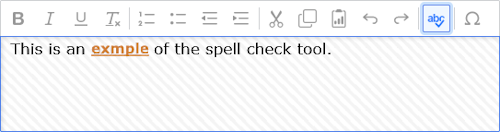
- In the toolbar, select . Potentially incorrect words change color and become underlined.
- To exit spell check, select again.
Special Characters
Students can add mathematical characters, accented characters, and other symbols.
- In the toolbar, select .
- In the window that pops up, select the required character.